Thursday, December 14, 2017

HTML Links

Links are found in nearly all web pages. Links allow users to click their way from page to page.

HTML Links - Hyperlinks

HTML links are hyperlinks.
You can click on a link and jump to another document.
When you move the mouse over a link, the mouse arrow will turn into a little hand.
Note: A link does not have to be text. It can be an image or any other HTML element.

HTML Links - Syntax

In HTML, links are defined with the <a> tag:
<a href="url">link text</a>

Example

<a href="https://www.w3schools.com/html/">Visit our HTML tutorial</a>
The href attribute specifies the destination address (https://www.w3schools.com/html/) of the link.
The link text is the visible part (Visit our HTML tutorial).
Clicking on the link text will send you to the specified address.
Note: Without a forward slash on subfolder addresses, you might generate two requests to the server. Many servers will automatically add a forward slash to the address, and then create a new request.

Local Links

The example above used an absolute URL (A full web address).
A local link (link to the same web site) is specified with a relative URL (without http://www....).

Example

<a href="html_images.asp">HTML Images</a>


HTML Link Colors

By default, a link will appear like this (in all browsers):
  • An unvisited link is underlined and blue
  • A visited link is underlined and purple
  • An active link is underlined and red
You can change the default colors, by using styles:

Example

<style>
a:link {
    color: green;
    background-color: transparent;
    text-decoration: none;
}

a:visited {
    color: pink;
    background-color: transparent;
    text-decoration: none;
}

a:hover {
    color: red;
    background-color: transparent;
    text-decoration: underline;
}

a:active {
    color: yellow;
    background-color: transparent;
    text-decoration: underline;
}
</style>

HTML Links - The target Attribute

The target attribute specifies where to open the linked document.
The target attribute can have one of the following values:
  • _blank - Opens the linked document in a new window or tab
  • _self - Opens the linked document in the same window/tab as it was clicked (this is default)
  • _parent - Opens the linked document in the parent frame
  • _top - Opens the linked document in the full body of the window
  • framename - Opens the linked document in a named frame
This example will open the linked document in a new browser window/tab:

Example

<a href="https://www.w3schools.com/" target="_blank">Visit W3Schools!</a>
Tip: If your webpage is locked in a frame, you can use target="_top" to break out of the frame:

Example

<a href="https://www.w3schools.com/html/" target="_top">HTML5 tutorial!</a>

HTML Links - Image as Link

It is common to use images as links:

Example

<a href="default.asp">
  <img src="smiley.gif" alt="HTML tutorial" style="width:42px;height:42px;border:0;">
</a>
Note: border:0; is added to prevent IE9 (and earlier) from displaying a border around the image (when the image is a link).

HTML Links - Create a Bookmark

HTML bookmarks are used to allow readers to jump to specific parts of a Web page.
Bookmarks can be useful if your webpage is very long.
To make a bookmark, you must first create the bookmark, and then add a link to it.
When the link is clicked, the page will scroll to the location with the bookmark.

Example

First, create a bookmark with the id attribute:
<h2 id="C4">Chapter 4</h2>
Then, add a link to the bookmark ("Jump to Chapter 4"), from within the same page:
<a href="#C4">Jump to Chapter 4</a>
Or, add a link to the bookmark ("Jump to Chapter 4"), from another page:

Example

<a href="html_demo.html#C4">Jump to Chapter 4</a>

External Paths

External pages can be referenced with a full URL or with a path relative to the current web page.
This example uses a full URL to link to a web page:

Example

<a href="https://www.w3schools.com/html/default.asp">HTML tutorial</a>
This example links to a page located in the html folder on the current web site:

Example

<a href="/html/default.asp">HTML tutorial</a>
This example links to a page located in the same folder as the current page:

Example

<a href="default.asp">HTML tutorial</a>
You can read more about file paths in the chapter HTML File Paths.

Chapter Summary

  • Use the <a> element to define a link
  • Use the href attribute to define the link address
  • Use the target attribute to define where to open the linked document
  • Use the <img> element (inside <a>) to use an image as a link
  • Use the id attribute (id="value") to define bookmarks in a page
  • Use the href attribute (href="#value") to link to the bookmark


Sunday, September 10, 2017

HTML5: you can "teach" older browsers to handle "unknown" HTML elements.

You can teach older browsers to handle HTML5 correctly.

HTML5 Browser Support

HTML5 is supported in all modern browsers.
In addition, all browsers, old and new, automatically handle unrecognized elements as inline elements.
Because of this, you can "teach" older browsers to handle "unknown" HTML elements.
You can even teach IE6 (Windows XP 2001) how to handle unknown HTML elements.

Define Semantic Elements as Block Elements

HTML5 defines eight new semantic elements. All these are block-level elements.
To secure correct behavior in older browsers, you can set the CSS display property for these HTML elements to block:
header, section, footer, aside, nav, main, article, figure {
    display: block;
}

Add New Elements to HTML

You can also add new elements to an HTML page with a browser trick.
This example adds a new element called <myHero> to an HTML page, and defines a style for it:

Example

<!DOCTYPE html>
<html>
<head>
  <script>document.createElement("myHero")</script>
  <style>
  myHero {
      display: block;
      background-color: #dddddd;
      padding: 50px;
      font-size: 30px;
 
}
 
</style>
</head>
<body>

<h1>A Heading</h1>
<myHero>My Hero Element</myHero>

</body>
</html>
The JavaScript statement document.createElement("myHero") is needed to create a new element in IE 9, and earlier.


Problem With Internet Explorer 8

You could use the solution described above for all new HTML5 elements.
However, IE8 (and earlier) does not allow styling of unknown elements!
Thankfully, Sjoerd Visscher created the HTML5Shiv! The HTML5Shiv is a JavaScript workaround to enable styling of HTML5 elements in versions of Internet Explorer prior to version 9.
You will require the HTML5shiv to provide compatibility for IE Browsers older than IE 9.

HTML5 Introduction

What is New in HTML5?

The DOCTYPE declaration for HTML5 is very simple:
<!DOCTYPE html>
The character encoding (charset) declaration is also very simple:
<meta charset="UTF-8">

HTML5 Example:

<!DOCTYPE html>
<html>
<head>
<meta charset="UTF-8">
<title>Title of the document</title>
</head>

<body>
Content of the document......
</body>

</html>
The default character encoding in HTML5 is UTF-8.

New HTML5 Elements

The most interesting new HTML5 elements are:
New semantic elements like <header>, <footer>, <article>, and <section>.
New attributes of form elements like number, date, time, calendar, and range.
New graphic elements: <svg> and <canvas>.
New multimedia elements: <audio> and <video>.
In the next chapter, HTML5 Support, you will learn how to "teach" older browsers to handle "unknown" (new) HTML elements.


New HTML5 API's (Application Programming Interfaces)

The most interesting new API's in HTML5 are:
  • HTML Geolocation
  • HTML Drag and Drop
  • HTML Local Storage
  • HTML Application Cache
  • HTML Web Workers
  • HTML SSE
Tip: HTML Local storage is a powerful replacement for cookies.

Removed Elements in HTML5

The following HTML4 elements have been removed in HTML5:
Removed Element Use Instead
<acronym> <abbr>
<applet> <object>
<basefont> CSS
<big> CSS
<center> CSS
<dir> <ul>
<font> CSS
<frame>  
<frameset>  
<noframes>  
<strike> CSS, <s>, or <del>
<tt> CSS
In the chapter HTML5 Migration, you will learn how to easily migrate from HTML4 to HTML5.

HTML History

Since the early days of the World Wide Web, there have been many versions of HTML:
Year Version
1989 Tim Berners-Lee invented www
1991 Tim Berners-Lee invented HTML
1993 Dave Raggett drafted HTML+
1995 HTML Working Group defined HTML 2.0
1997 W3C Recommendation: HTML 3.2
1999 W3C Recommendation: HTML 4.01
2000 W3C Recommendation: XHTML 1.0
2008 WHATWG HTML5 First Public Draft
2012 WHATWG HTML5 Living Standard
2014 W3C Recommendation: HTML5
2016 W3C Candidate Recommendation: HTML 5.1
From 1991 to 1999, HTML developed from version 1 to version 4. 
In year 2000, the World Wide Web Consortium (W3C) recommended XHTML 1.0. The XHTML syntax was strict, and the developers were forced to write valid and "well-formed" code.
In 2004, W3C's decided to close down the development of HTML, in favor of XHTML.
In 2004, WHATWG (Web Hypertext Application Technology Working Group) was formed. The WHATWG wanted to develop HTML, consistent with how the web was used, while being backward compatible with older versions of HTML.
In 2004 - 2006, the WHATWG gained support by the major browser vendors.
In 2006, W3C announced that they would support WHATWG.
In 2008, the first HTML5 public draft was released.
In 2012, WHATWG and W3C decided on a separation:
WHATWG wanted to develop HTML as a "Living Standard". A living standard is always updated and improved. New features can be added, but old functionality cannot be removed.
The WHATWG HTML5 Living Standard was published in 2012, and is continuously updated.
W3C wanted to develop a definitive HTML5 and XHTML standard.
The W3C HTML5 recommendation was released 28 October 2014.
W3C also published an HTML 5.1 Candidate Recommendation on 21 June 2016.

<button> vs. <input type=“button” />. Which to use?

  • Here's a page describing the differences (basically you can put html into a <button></button>)
  • And another page describing why people avoid <button></button> (Hint: IE6)
Another IE problem when using <button />:
And while we're talking about IE, it's got a couple of bugs related to the width of buttons. It'll mysteriously add extra padding when you're trying to add styles, meaning you have to add a tiny hack to get things under control.

HTML url encode

A URL is another word for a web address.
A URL can be composed of words (w3schools.com), or an Internet Protocol (IP) address (192.68.20.50).
Most people enter the name when surfing, because names are easier to remember than numbers.

URL - Uniform Resource Locator

Web browsers request pages from web servers by using a URL.
A Uniform Resource Locator (URL) is used to address a document (or other data) on the web.
A web address, like https://www.w3schools.com/html/default.asp follows these syntax rules:
scheme://prefix.domain:port/path/filename
Explanation:
  • scheme - defines the type of Internet service (most common is http or https)
  • prefix - defines a domain prefix (default for http is www)
  • domain - defines the Internet domain name (like w3schools.com)
  • port - defines the port number at the host (default for http is 80)
  • path - defines a path at the server (If omitted: the root directory of the site)
  • filename - defines the name of a document or resource

Common URL Schemes

The table below lists some common schemes:
Scheme Short for Used for
http HyperText Transfer Protocol Common web pages. Not encrypted
https Secure HyperText Transfer Protocol Secure web pages. Encrypted
ftp File Transfer Protocol Downloading or uploading files
file   A file on your computer

URL Encoding

URLs can only be sent over the Internet using the ASCII character-set. If a URL contains characters outside the ASCII set, the URL has to be converted.
URL encoding converts non-ASCII characters into a format that can be transmitted over the Internet.
URL encoding replaces non-ASCII characters with a "%" followed by hexadecimal digits.
URLs cannot contain spaces. URL encoding normally replaces a space with a plus (+) sign, or %20.


Try It Yourself


If you click "Submit", the browser will URL encode the input before it is sent to the server.
A page at the server will display the received input.
Try some other input and click Submit again.

ASCII Encoding Examples

Your browser will encode input, according to the character-set used in your page.
The default character-set in HTML5 is UTF-8.

HTML entity (vd <  )

HTML Entities

some characters are reserved in HTML.
If you use the less than (<) or greater than (>) signs in your text, the browser might mix them with tags.
Character entities are used to display reserved characters in HTML.
A character entity looks like this:
&entity_name; OR
&#entity_number; 
To display a less than sign (<) we must write: &lt; or &#60;
Advantage of using an entity name: An entity name is easy to remember.
Disadvantage of using an entity name: Browsers may not support all entity names, but the support for numbers is good.

Non-breaking Space

A common character entity used in HTML is the non-breaking space: &nbsp;
A non-breaking space is a space that will not break into a new line.
If you write 10 spaces in your text, the browser will remove 9 of them. To add real spaces to your text, you can use the &nbsp; character entity.

Some Other Useful HTML Character Entities


Result Description Entity Name Entity Number

non-breaking space &nbsp; &#160;
< less than &lt; &#60;
> greater than &gt; &#62;
& dấu hiệu &amp; &#38;
" double quotation mark &quot; &#34;
' single quotation mark (apostrophe) &apos; &#39;
¢ cent &cent; &#162;
£ pound &pound; &#163;
¥ yen &yen; &#165;
€ euro &euro; &#8364;
© copyright &copy; &#169;
® registered trademark &reg; &#174;
Note: Entity names are case sensitive.

Saturday, September 9, 2017

HTML Layouts

HTML Layout Elements

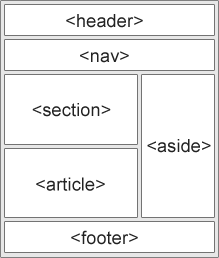
Websites often display content in multiple columns (like a magazine or newspaper).
HTML5 offers new semantic elements that define the different parts of a web page:
HTML5 Semantic Elements
  • <header> - Defines a header for a document or a section
  • <nav> - Defines a container for navigation links
  • <section> - Defines a section in a document
  • <article> - Defines an independent self-contained article
  • <aside> - Defines content aside from the content (like a sidebar)
  • <footer> - Defines a footer for a document or a section
  • <details> - Defines additional details
  • <summary> - Defines a heading for the <details> element

HTML Layout Techniques

There are four different ways to create multicolumn layouts. Each way has its pros and cons:
  • HTML tables
  • CSS float property
  • CSS framework
  • CSS flexbox


Which One to Choose?

HTML Tables

The <table> element was not designed to be a layout tool! The purpose of the <table> element is to display tabular data. So, do not use tables for your page layout! They will bring a mess into your code. And imagine how hard it will be to redesign your site after a couple of months.
Tip: Do NOT use tables for your page layout!

CSS Frameworks

If you want to create your layout fast, you can use a framework, like W3.CSS or Bootstrap.

CSS Floats

It is common to do entire web layouts using the CSS float property. Float is easy to learn - you just need to remember how the float and clear properties work. Disadvantages: Floating elements are tied to the document flow, which may harm the flexibility. Learn more about float in our CSS Float and Clear chapter.


CSS Flexbox

Flexbox is a new layout mode in CSS3.
Use of flexbox ensures that elements behave predictably when the page layout must accommodate different screen sizes and different display devices. Disadvantages: Does not work in IE10 and earlier.
Learn more about flexbox in our CSS Flexbox chapter.